How To Fix Surface Pro 3, 4, 5, 6, 7, or 7+ keyboard not working
Try This First
If your touch or physical keyboard appears locked, as in none of the keys are working, try this first.
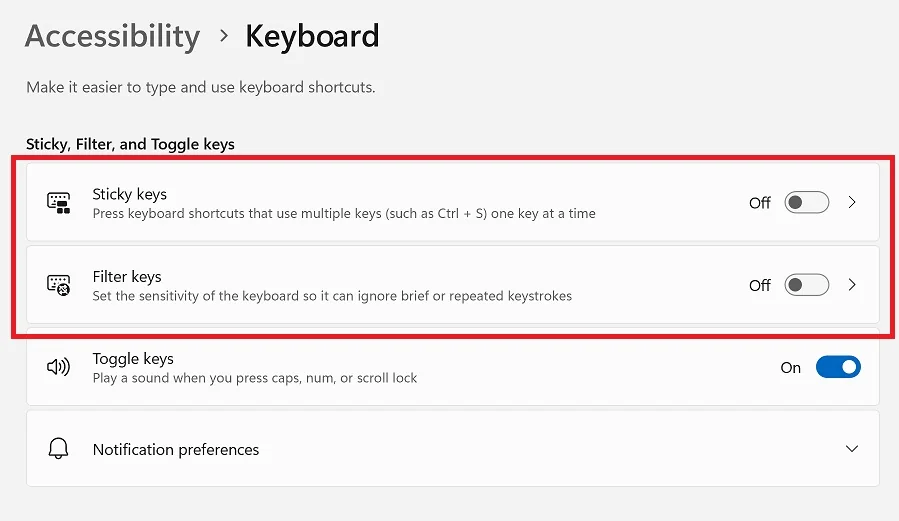
- Open Settings to Accessibility > Keyboard (Windows 11) or Ease of Access > Keyboard (Windows 10).
- Then turn off Sticky keys and Filter keys.
Previous Method Didn’t Work
If that doesn’t work try the Surface reset method shown here.