How To Install Windows 11 Without A Microsoft Account And Internet Connection
When installing Windows 11 it appears you need a Microsoft to complete the installation. Here’s how to install Windows 11 without Microsoft account, bypassing the requirement completely.
Installing Windows 11 Without A Microsoft Account
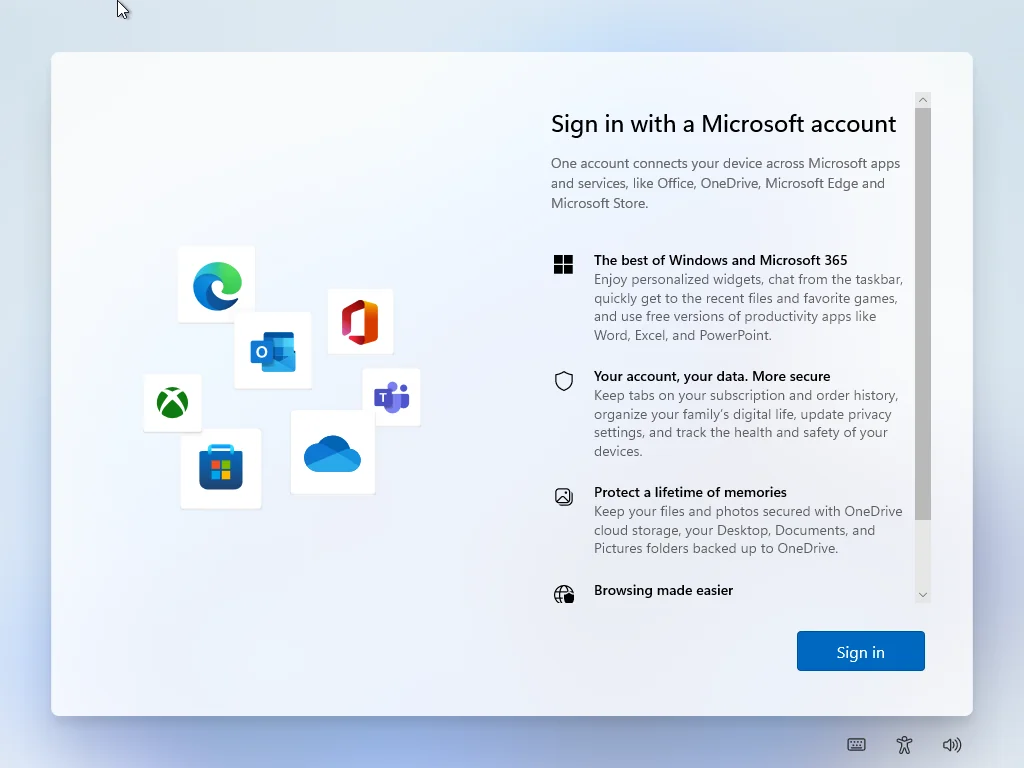
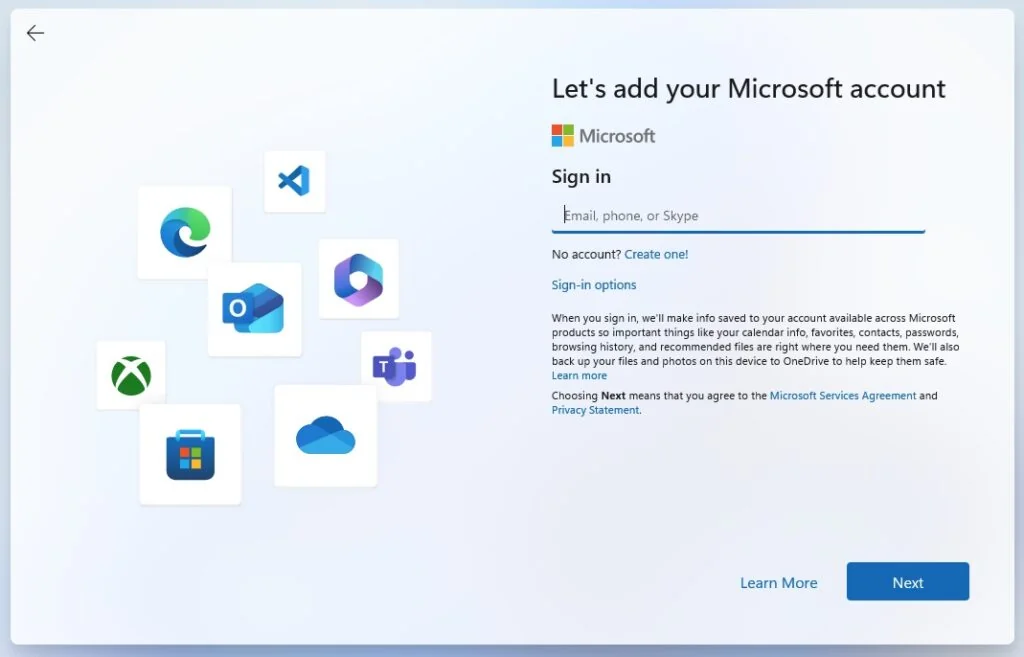
While installing Windows 11 you’ll arrive to the out-of-box experience (OOBE). At one point of this process you will be faced with a prompt to make sure you have an internet connection and to create or sign into a Microsoft account. Most likely an attempt by Microsoft to steer users to create a Microsoft account. It will appear as if there’s no way around it, making user think they have no choice to create or login to a Microsoft account if they want to complete the Windows 11 installation. Fortunately there is a way around this.
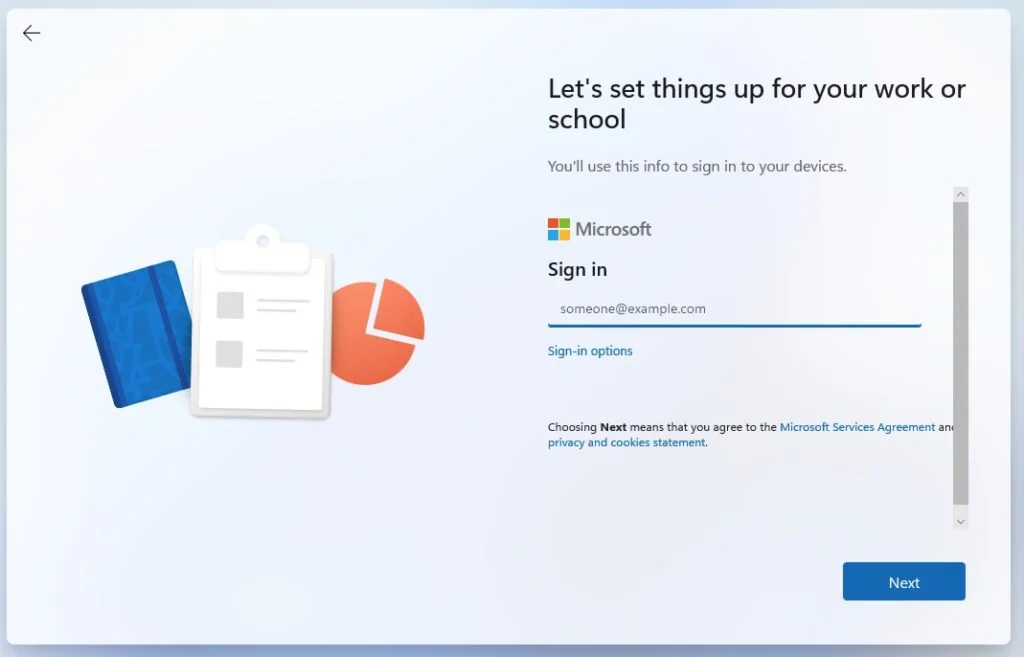
Before You Begin The Windows 11 Installation
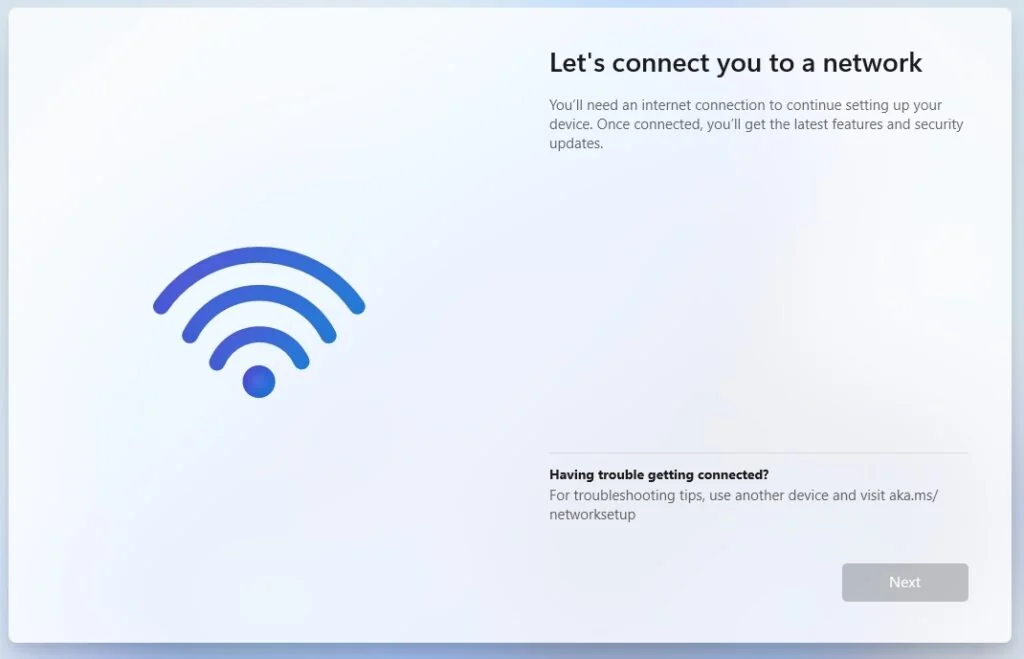
Before you begin it is important to disconnect the internet connection or unplug the NIC from the network before you start the installation. You want the OOBE to prompt you to check your internet connection. If installing on a VM disable or disconnect the NIC from the virtual switch.
When Prompted To Check Internet Connection
On the “Oops, you’ve lost internet connection” or “Let’s connect you to a network” window. Here use the “Shift + F10” keyboard shortcut to bring up a command prompt.
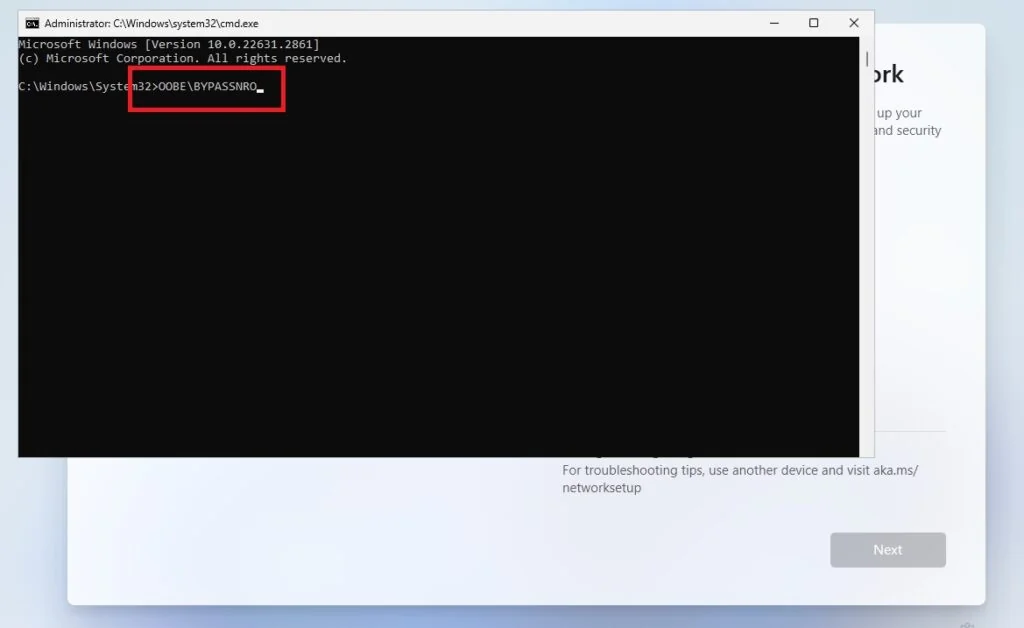
In Command Prompt, type the OOBE\BYPASSNRO command to bypass network requirements on Windows 11 and press Enter.
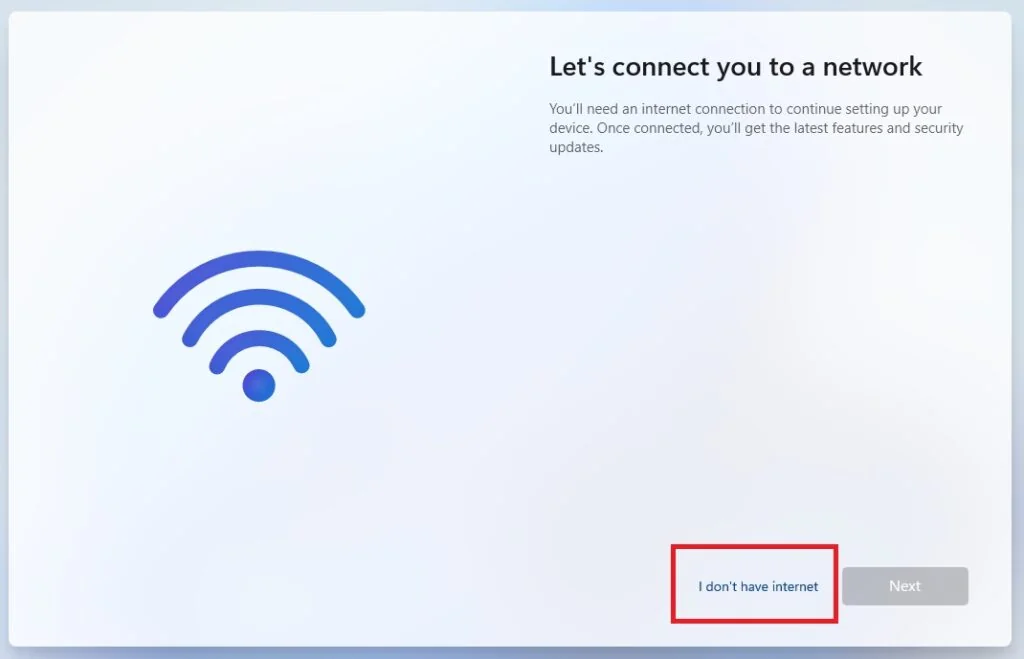
The computer will restart automatically, and the out-of-box experience (OOBE) will start again. This time the “Oops, you’ve lost internet connection” or “Let’s connect you to a network” window will look a little different, which will become apparent in the next step.
Click the “I don’t have internet” option.
Select the “Continue with limited setup” option.
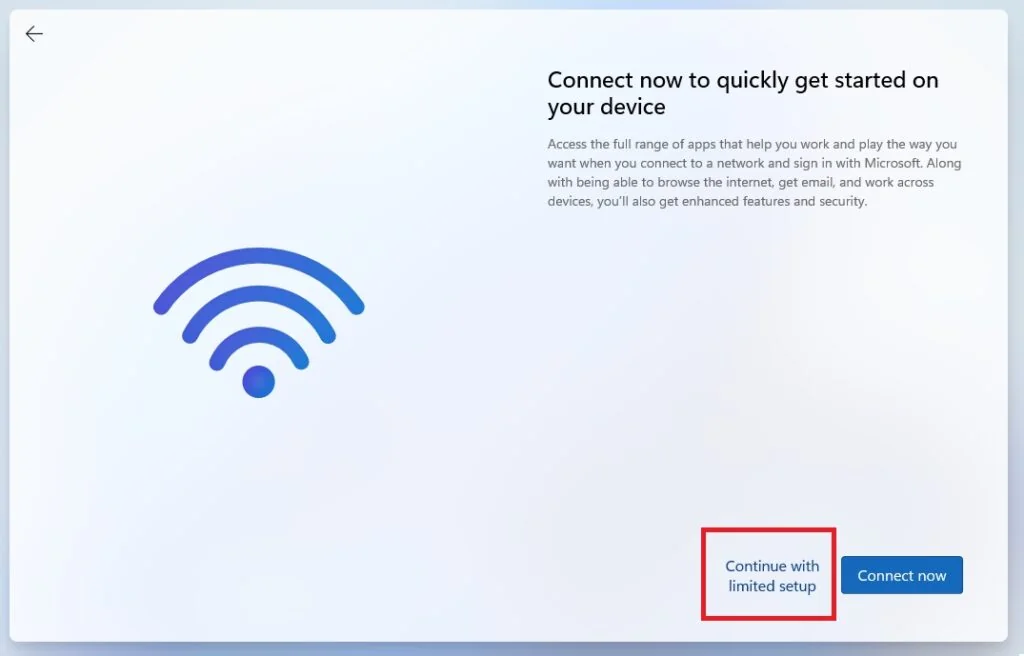
Click the Accept button (if prompted).
Now continue the install of Windows 11 without Microsoft account until done. When the installation is complete you can reconnect or re-enable the NIC or network connection.
If you’re upgrading Proxmox Windows 10 guest VMs – check out the changes I had to make to my Proxmox Windows 10 guests to upgrade them to Windows 11. Link below or click here.