How To Enable And Schedule Night Light On Windows 10
Recent studies have shown that blue light disrupts the natural processes of the body to start winding down for the night and prepare for sleep. Blue light may also cause trouble falling asleep. Blue light signals the brain its day time and that its time to be awake. The screens from our laptops, tablets, etc. produce this blue light. For those of you who find it hard to give up your electronics well after the sun goes down, this may be negatively affecting your sleep and keep you from falling asleep.
Enabling and scheduling Windows 10 night light will significantly reduce the negative affects of blue light at night. At least for Windows 10 users.
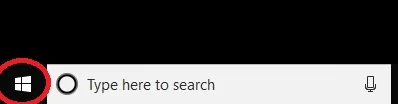
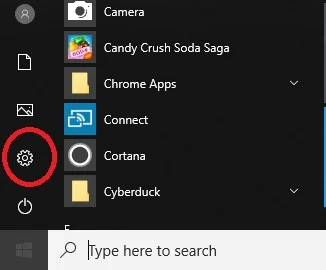
Step 1. Open Windows Start Menu
Step 2. Click on gear icon to bring up the Settings menu panel.
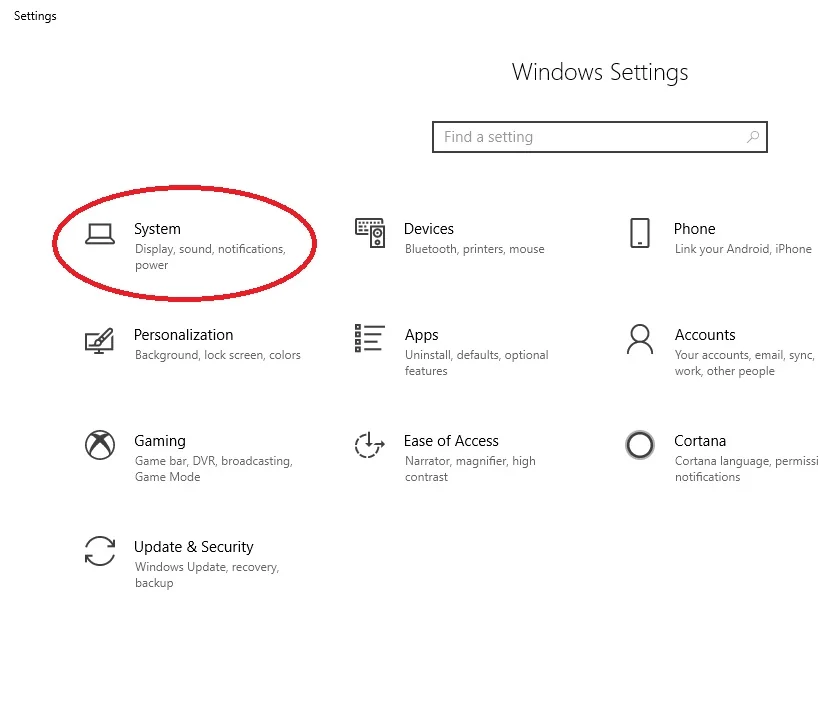
Step 3. Click System.
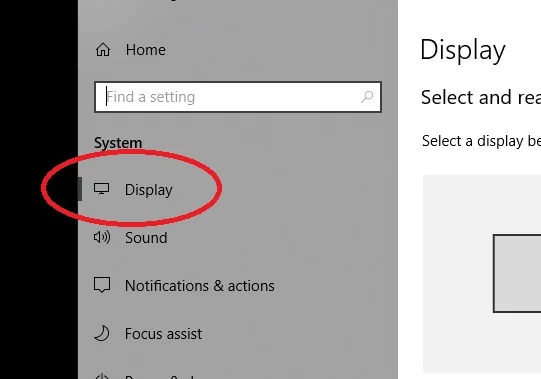
Step 4. Select Display.
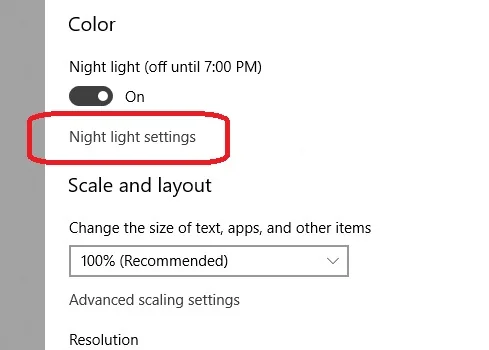
Step 5. Toggle the Night light switch to On.
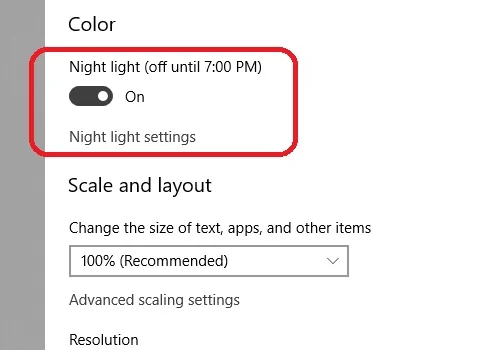
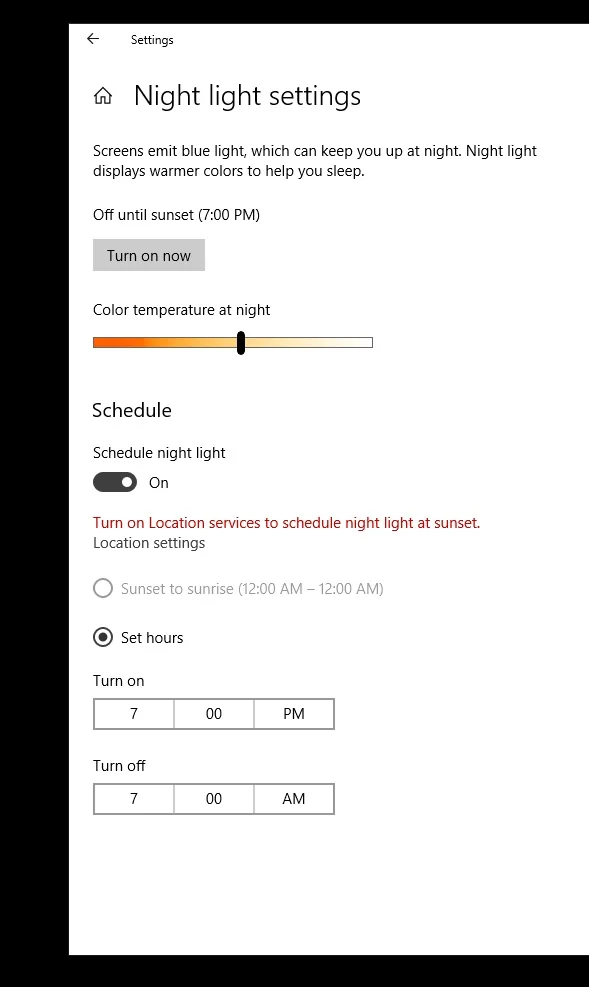
Step 6. Click Night light settings
adjust the color temperature level, turn the Night Light schedule on, or to change the time for it to activate and deactivate automatically.
Now you can continue to enjoy your laptop well into the night without worrying about the negative affects of your laptops blue light.
Also, you may want to find similar settings for any other device with a screen you may use after the sun goes down.