Windows Server DHCP Backup And Restore
This tutorial will show how backup and/or restore the settings for a Windows 2008 R2, 2012, or 2012 R2 DHCP server.
How to Backup
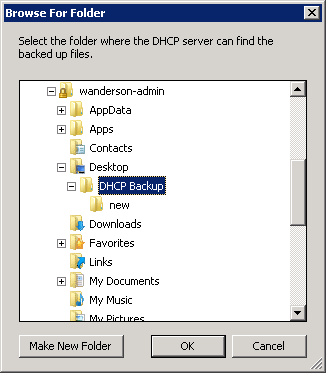
Create folder named “DHCP Backup” somewhere you can access it easily.
Open the DHCP administration MMC (you can also access it from the Server Manager tool).
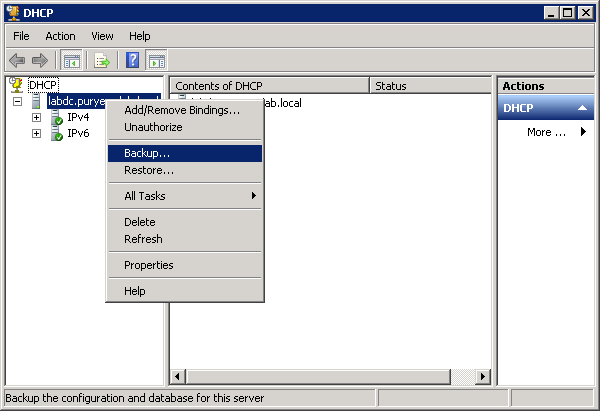
Right-click on the server name and select “Backup”.
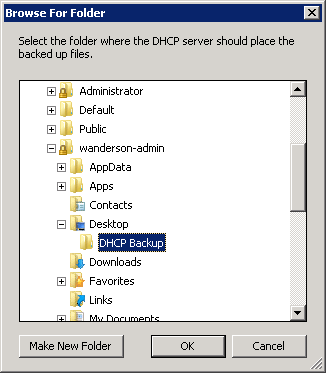
Find the folder you created above and click OK. You will not receive any notice if the backup was successful but you can open the folder and see if files were created.
How To Restore
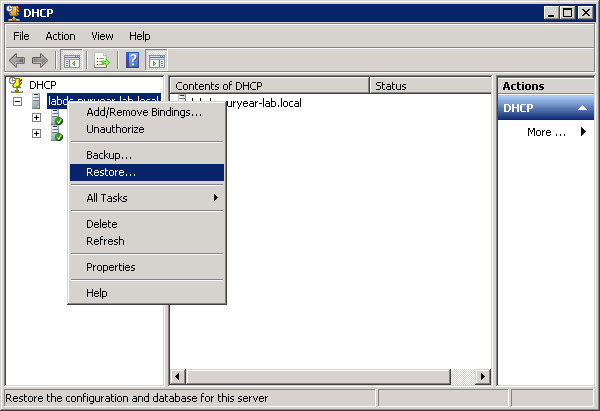
To restore, open the DHCP manager, right-click on the server name, and select “Restore”.
Find the folder where the data was exported and click OK. The original settings, including Scope data, will be restored.
Authorize New server if not done already.
Note: In some cases a message may appear – “The Database was not restored correctly. No changes were made. For more information, please see Event Viewer on the specified server”. To avoid the error message I would suggest moving or coping the created folder above and its contents off the old dhcp server to the default dhcp backup location on the new server. Usually located in”C:\Windows\System32\dhcp”